
Features
Design scenes, shape transitions, and export native ATEM macros.
Scene Design
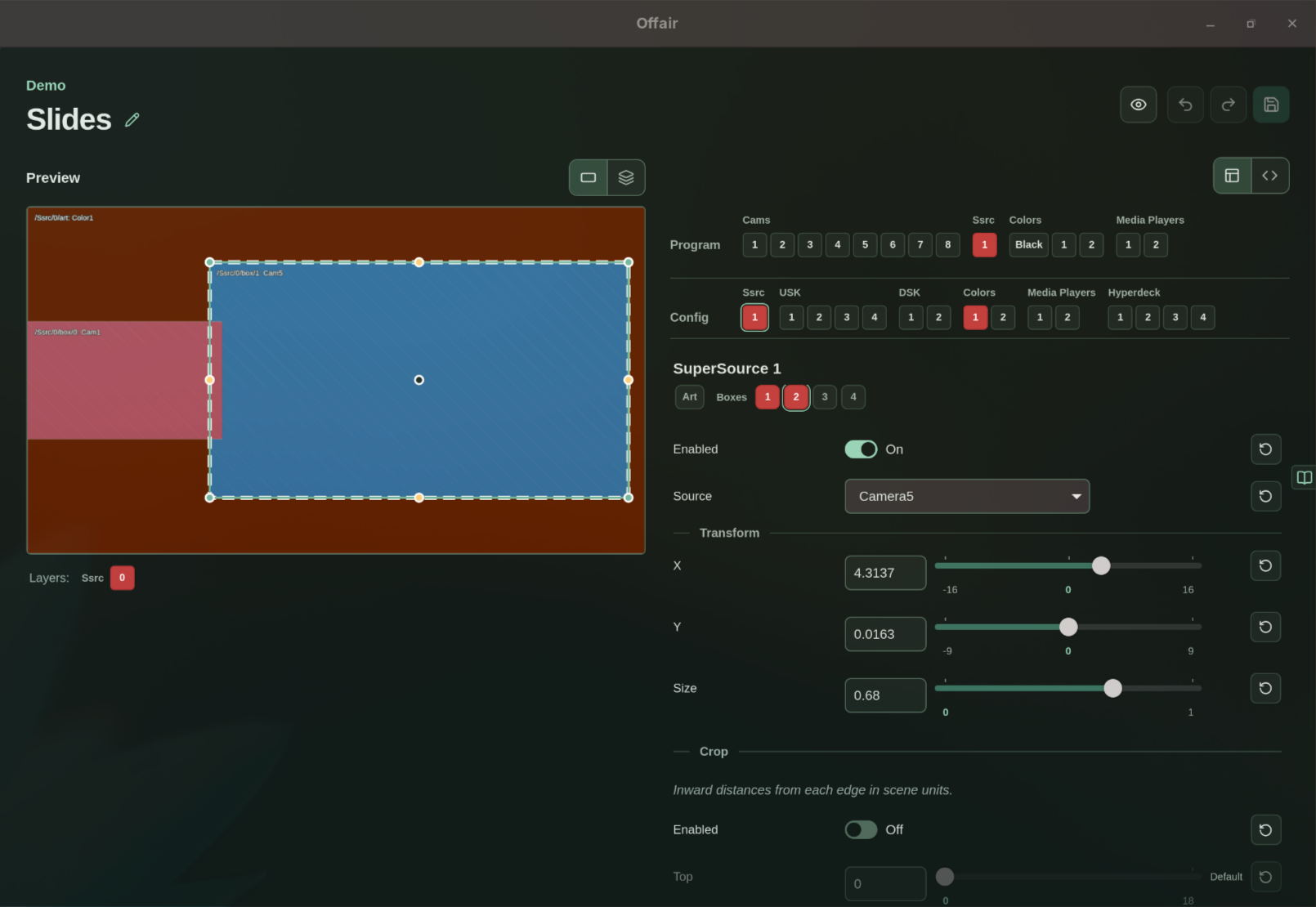
Build scenes in the graphical editor or in YAML. Keep the whole show in local project files and review your compositions in the scene gallery.
- Position, resize and crop with visual controls.
- Prepare your project offline without connecting to production equipment.
- Use device profiles to match the controls to your ATEM.
Keyframe Animation
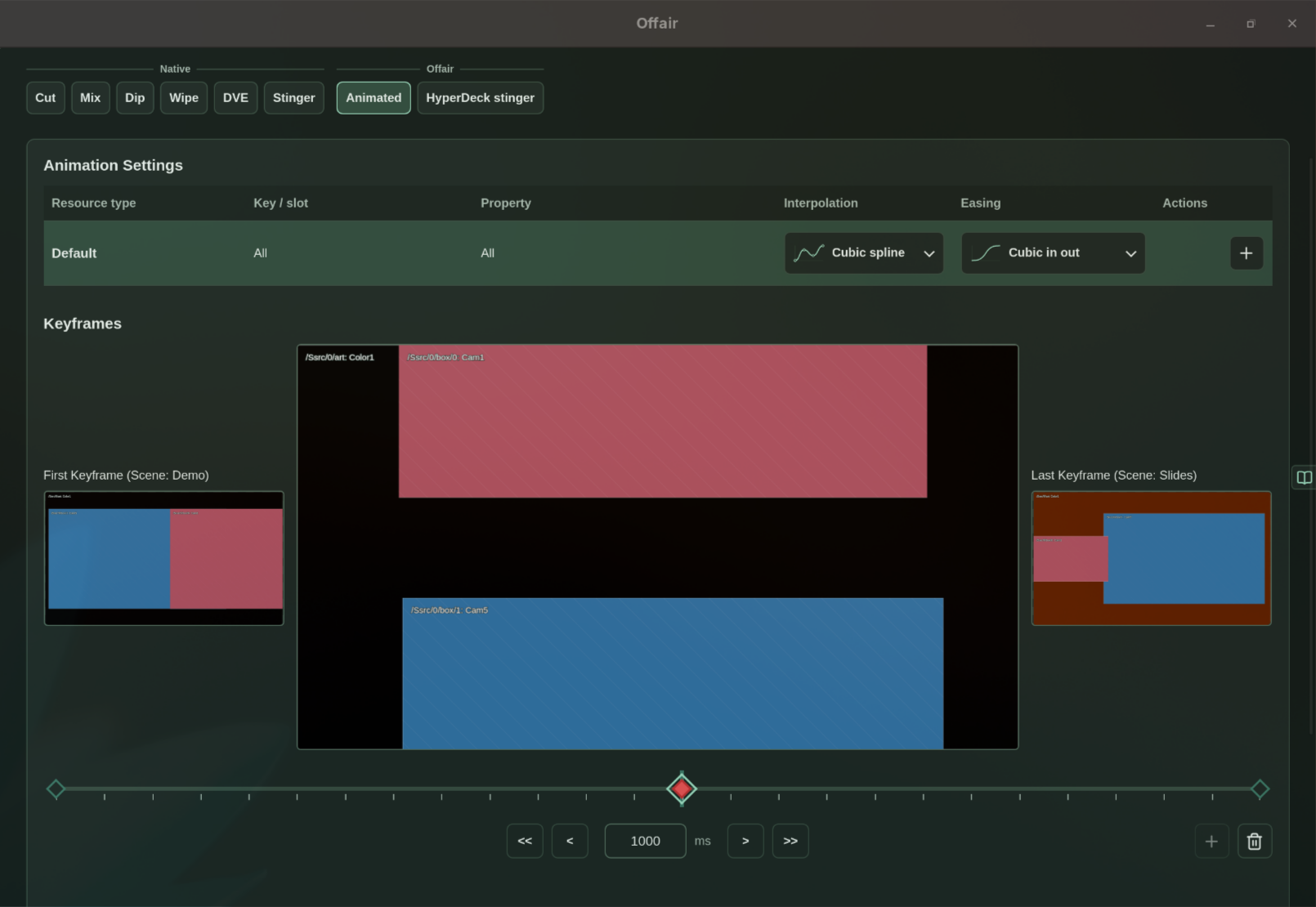
Set values at key moments and shape how they change over time. Animations compile into frame-timed instructions in native ATEM macros.
- Add and remove intermediate keyframes between fixed source and target scenes.
- Drag markers to retime them and navigate the timeline in whole frames.
- Edit a selected keyframe with the same resource inspectors and canvas handles used for scenes.
- Change only the properties you need; sparse patches retain the preceding configuration.
Native Macro Export
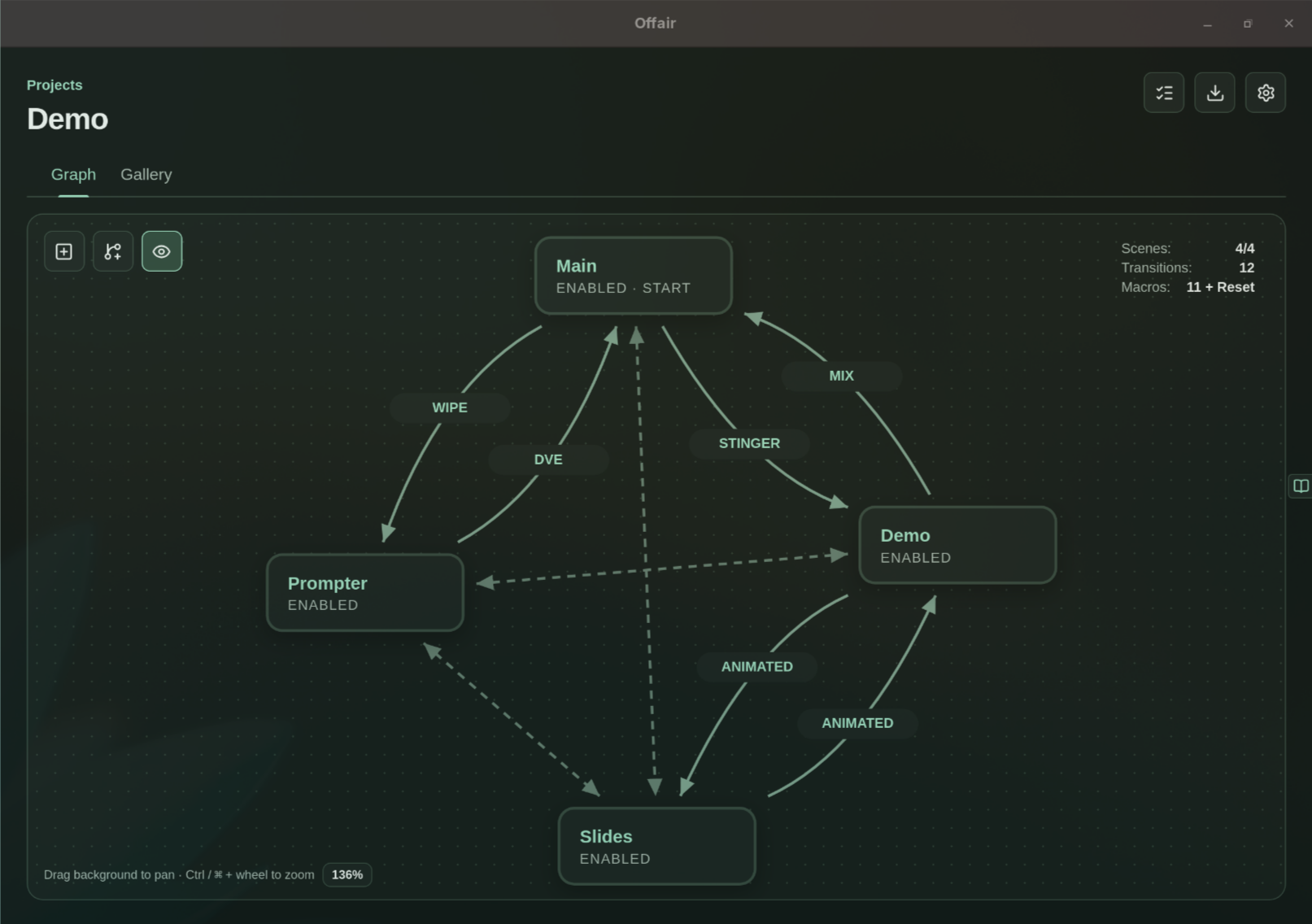
Generate ATEM XML macros from your scenes and transitions, then import and rehearse them in your production setup. Once exported, playback stays on the switcher.
- Compile transitions and animations into frame-based macro instructions.
- Export a route map identifying the macro for each directed scene change.
- Run the installed macros independently of Offair.
- Use the bundled Documentation for version-matched import and rehearsal steps.
Explore All Features
Design and Authoring
Highlight Scene Design
Prepare precise layouts before accessing the switcher. Position, size and crop sources in your local project.
View detailsScene Templates
Start with ready-made layouts for presentations, interviews, panels and facecams.
View detailsScene Gallery
Review your show’s compositions together in a visual scene gallery.
View details2D and 3D Previews
Inspect a flat composition or spread its layers apart in an interactive 3D view.
View detailsYAML Editing
Switch between graphical controls and editable source without losing your place.
View detailsUndo and Draft Protection
Move through edits confidently, with shared history and checks before leaving unsaved work.
View details
ATEM Composition
SuperSource Layouts
Compose multiple sources with individual box transforms, crops and background artwork.
View detailsUpstream Keying
Prepare Luma, Chroma, Pattern and DVE keys in one resource-aware editor.
View detailsDownstream Overlays
Prepare logos, name straps and other overlays using downstream keys.
View detailsColor Generators
Set precise colors for scenes and prepared transition resources.
View detailsStills and Clip Playback
Choose preloaded stills or configure clip starting frames, scene-entry playback and looping.
View detailsHyperDeck Scene Actions
Start, stop or loop an external clip as part of entering a scene.
View details
Show Structure and Transitions
Scene Transitions
Connect your scenes and plan how the show moves from one view to the next.
View detailsNative ATEM Transitions
Configure Cut, Mix, Dip, Wipe and DVE effects with the controls each family needs.
View detailsNative ATEM Stingers
Build a transition around a clip in the ATEM’s internal media pool.
View detailsHyperDeck Stingers
Coordinate an external clip, an overlay key and the scene change underneath.
View detailsStartup and Reset
Generate a known starting baseline and initialize your chosen opening scene.
View details
Animation
Highlight Keyframe Animation
Create repeatable layout changes. Animate supported position, size and crop properties with precise timing and easing.
View detailsEasing and Interpolation
Shape motion with easing curves and hold, linear or cubic-spline interpolation.
View detailsPer-Property Animation Rules
Give individual resources and properties their own interpolation and easing.
View detailsAnimate Beyond Movement
Animate colors, crops, masks and key parameters as well as position and scale.
View details
Validation and Export
Highlight Native Macro Export
Run your prepared show without keeping Offair open. Export native ATEM macros and optional Companion controls.
View detailsMacro Optimization
Reduce redundant commands and share eligible identical route macros.
View detailsMacro-Slot Management
Choose where generated macros live and clear unused slots within that range.
View detailsValidation and Diagnostics
Check the whole project before export and jump directly to problems in the source.
View detailsCommand-Line Automation
Initialize, inspect, validate and generate shows from a terminal or script.
View details
Companion Integration
Per-Property Animation Rules
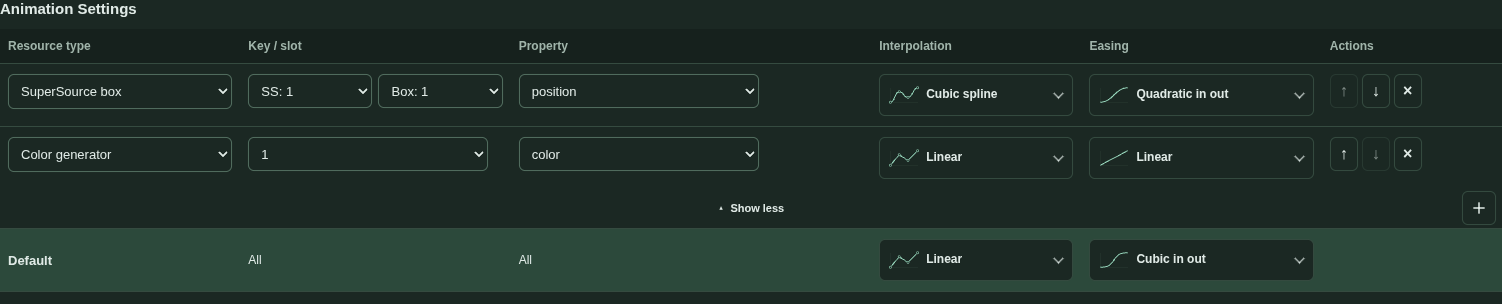
All featuresUse ordered animation rules to combine broad defaults with precise exceptions. Different properties can move on different numeric timing curves within the same transition.
- Target a resource family, hardware slot, property group or individual numeric property.
- Use wildcard selectors to apply a rule across matching resources.
- Order exceptions before broader rules; the first matching setting takes precedence.
- Inherit interpolation or easing independently from later rules and the Catch All settings.
Full-size screenshot